This guide will demonstrate the steps needed to add a payment method to the Customer
Portal for the first time.
1) Log into the Customer Portal at https://billing.myvoice.vip
2) Select the Customer Profile Icon on the top right-hand side of the page and select "My Wallet"
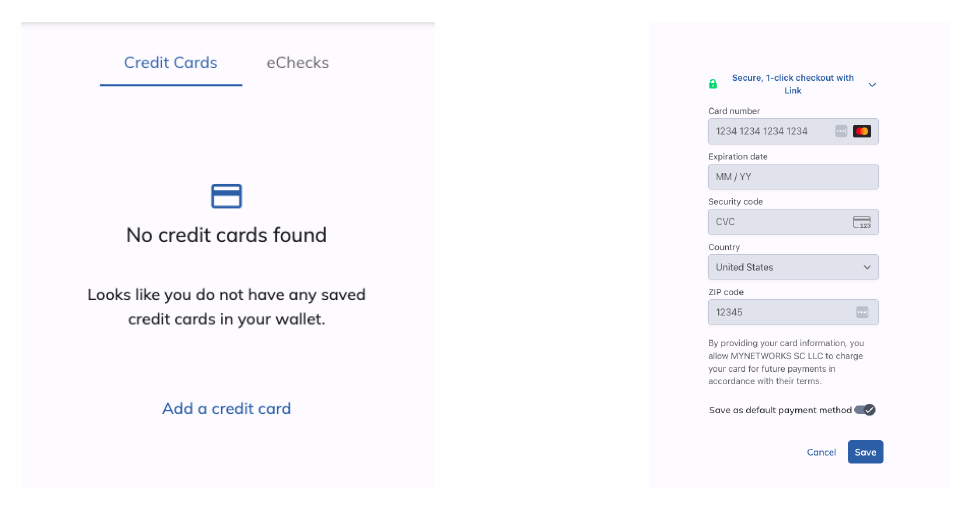
3)Select “Credit Cards” to add a credit card or “eChecks” to add a bank account for ACH payment. Click “Add a credit card” or “Add an eCheck” to enter your information.
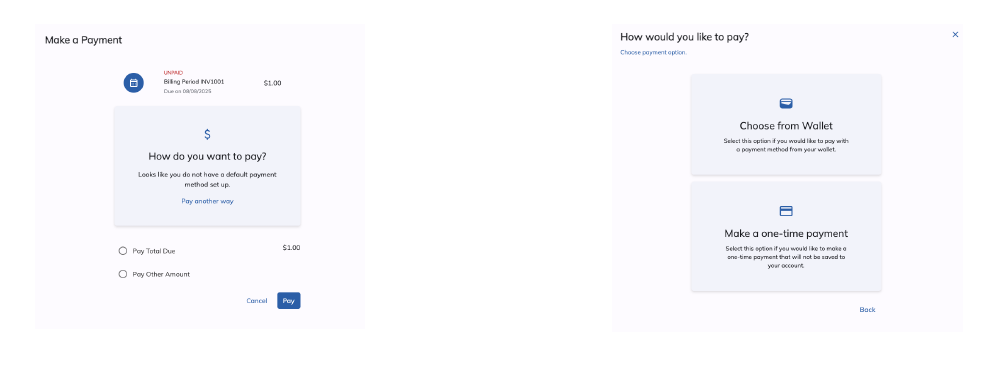
4)\ Alternatively, you may select an individual invoice and make a one time payment by selecting
“Pay Another Way” and then “Make a One Time Payment”
Was this article helpful?
That’s Great!
Thank you for your feedback
Sorry! We couldn't be helpful
Thank you for your feedback
Feedback sent
We appreciate your effort and will try to fix the article